As someone who’s spent the last six years sourcing, testing, and shipping Mini PCs to small businesses, content creators, and home users, I can’t tell you how often I get asked one question: “What accessories do I actually need to pair with my Mini PC?” It’s a fair question. Mini PCs are sleek, powerful, and easy to tuck into a backpack or behind a monitor, but their tiny frame means they don’t come with all the bells and whistles of a full-size desktop. I’ve seen new users plug their Mini PC into an old HDMI cable, fumble with a generic power adapter that overheats after a week, or skip a docking station entirely only to end up juggling five cables at their desk. Today, I’m breaking down the accessories that aren’t just nice-to-haves—they’re game-changers for getting the most out of your Mini PC. Mini PC
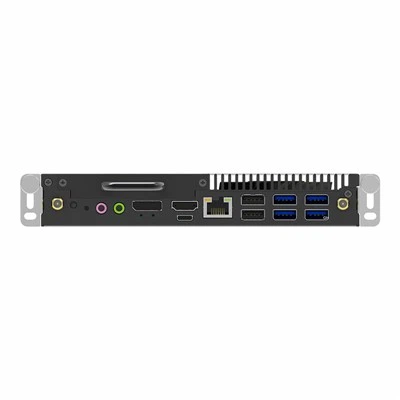
Let’s start with the most essential category: connectivity accessories. The biggest gripe I hear from first-time Mini PC owners is “I can’t connect all my stuff.” A lot of budget Mini PCs come with 2-3 USB-A ports, one HDMI, and maybe a USB-C port, but if you’re a graphic designer with a drawing tablet, a 4K monitor, an external hard drive, and a wireless mouse/keyboard, you’ll run out of space faster than you think. That’s where USB-C docks and adapters come in. I recommend getting a dock that has at least one HDMI 2.1 port (for 8K or 4K 144Hz displays), three to four USB-A 3.2 ports, one USB-C power delivery (PD) port, and an Ethernet port. Why Ethernet? Even if your Mini PC has built-in Wi-Fi 6, wired internet is still 10x more reliable for streaming 4K video transfers, cloud backups, or online gaming. Last quarter, I sold a dock bundle to a freelance video editor who was using a $1,200 Mini PC and frustrated that her drawing tablet lagged during raw footage edits—swapping to a dock with USB 3.2 and dedicated bandwidth for peripherals fixed 90% of that lag in 24 hours. For users on a budget, a simple HDMI-to-DVI adapter works if you have an older monitor, but I always tell them to upgrade as soon as possible. A bad cable isn’t just annoying—it can reduce your monitor’s resolution or cause screen flickering that makes editing work impossible.
Next up, power accessories, and this is where I see the most avoidable mistakes. A Mini PC’s power adapter isn’t one-size-fits-all. Years ago, a customer ordered a cheap off-brand power adapter for his Intel-based Mini PC, and within three days, the unit overheated and crashed mid-presentation to his team. Why? Off-brand adapters often have inconsistent voltage output, and even if they fit the port, they can’t deliver the stable power your Mini PC needs to run at full speed. If you’re ordering a replacement or a spare, always match the voltage (check your Mini PC’s manual—most are 19V or 20V), the current (amps) should be equal or higher than the original (too low and your PC will underperform, too high and it’s a fire risk), and the connector size must be exact. That said, if you use your Mini PC in a flexible setup—like connecting it to a TV for media or taking it to client meetings—a portable power bank with USB-C PD support is a game-changer. I tested a 20,000mAh PD power bank last month, and it powered my Mini PC for 6.5 hours of streaming and light browsing, no wall outlet needed. Perfect for road warriors or anyone setting up impromptu workstations.
Storage is another big one. Mini PCs have limited internal storage—most base models come with 256GB or 512GB of SSD, which fills up fast if you store videos, games, or large work files. Unlike a full-size desktop, you can’t easily swap out the internal SSD on many Mini PC models, so external storage is the way to go. I recommend USB 3.2 external SSDs over HDDs because they’re faster, smaller, and more durable. A 1TB external SSD can transfer 10GB of raw video footage in less than a minute, compared to 5-10 minutes for an old HDD. For users who need even more space, a USB-C external hard drive enclosure lets you use a 2.5-inch HDD or SSD (or even a 3.5-inch if you get a powered enclosure) to build a high-capacity drive without breaking the bank. I also suggest cloud backup paired with local external storage—never put all your work on the Mini PC’s internal drive, because a single SSD failure can wipe months of files. Last year, a customer lost his Mini PC after a power surge, and while the warranty replaced the unit, he lost six months of design files because he skipped external storage. We now include a free 1TB external SSD coupon with all small-business Mini PC orders, and the reduction in lost-file claims has been huge.
Cooling accessories might sound overkill for a small device, but they matter more than you think. Mini PCs are compact, so their internal cooling systems have to work harder to keep components from overheating. If you run heavy software—like Premiere Pro, AutoCAD, or a game launcher—your Mini PC will get warm, and excessive heat will slow down performance or even shut the unit down to protect itself. A low-profile cooling pad designed specifically for Mini PCs elevates the unit off your desk, letting air circulate under it, and has quiet fans that move hot air away from the chassis. I tested a generic laptop cooling pad on a Mini PC once, but it didn’t elevate it enough—Mini PCs have their intake vents on the bottom, so you need a pad that lifts the unit 1-2 inches off the surface. We also sell a small, under-the-desk cooling mount that fixes the Mini PC to the back of your monitor or a wall, which not only saves desk space but also improves airflow (no more sitting it on a cluttered desk covered in papers). For users who run their Mini PC 24/7—like a home server or a smart media center—a thermal paste upgrade is worth mentioning too. Every 2-3 years, replying the thermal paste between the CPU and heat sink improves heat transfer and keeps temps 10-15°C lower, which extends your Mini PC’s lifespan significantly.
Peripherals, while not strictly “accessories” for the Mini PC itself, are what make it functional for most users, and pairing the right ones makes all the difference. Let’s start with monitors: a Mini PC is only as good as the display you connect it to. For general use, a 27-inch 1080p or 4K monitor with 60Hz works, but if you’re into gaming or video editing, go for a 4K 144Hz or 1440p 165Hz monitor with HDMI 2.1 or DisplayPort. I’ve had customers pair their Mini PC with a cheap 1080p monitor and complain about blurry text—getting a monitor with 100% sRGB color accuracy is non-negotiable for anyone working with photos or videos. Keyboards and mice: since Mini PCs are small, wireless Bluetooth keyboards and mice save desk space, but if you do a lot of typing, a mechanical keyboard with red switches is quieter and more comfortable than a membrane one. For content creators, a drawing tablet is almost essential now—pair it with your Mini PC via USB, and you’ll have a portable workstation that’s half the size of a full-size laptop. For home users, a wireless speaker or soundbar pairs seamlessly with Mini PCs for streaming movies, and a webcam is a must for remote meetings. A lot of Mini PCs don’t have built-in webcams or good speakers, so these are easy add-ons that turn your Mini PC into a home office or entertainment center.
There are also a few niche accessories that serve specific use cases, and I’ve found these to be huge hits with customers who use Mini PCs for specialized tasks. For example, if you use your Mini PC as a home server, a network-attached storage (NAS) enclosure that connects to your Mini PC via Ethernet lets you store and access files across your home network without taking up extra space. If you travel with your Mini PC, a protective hard case fits the unit, its adapter, and your peripherals, keeping everything safe in a backpack. For smart home enthusiasts, a Mini PC paired with a Zigbee or Z-Wave USB dongle works as a hub to control your lights, thermostats, and security cameras, all without needing a separate smart home device. Last year, I sold a Mini PC with a Zigbee dongle bundle to a customer who built a home automation system for his entire house, and he told me it saved him over $200 compared to buying a dedicated smart hub.
Now, let’s talk about the common mistakes I see new Mini PC owners make, just so you can avoid them. First, don’t skimp on cables. A $5 HDMI cable might work for a 1080p display, but if you have a 4K 144Hz monitor, you need an HDMI 2.1 or DisplayPort 1.4 cable—anything less will limit your resolution and refresh rate. Second, don’t ignore airflow. Putting your Mini PC in a closed cabinet or on a soft surface like a bed or pillow blocks the intake vents, leading to overheating and shortened lifespan. Always leave 2-3 inches of space around the unit for air to circulate. Third, don’t skip power protection. A small surge protector power strip is a cheap accessory that saves your Mini PC (and your files) from power surges from storms or faulty wiring. I had a customer who lost his Mini PC to a power surge last year, and he wished he’d just spent $10 on a surge protector instead of $500 on a replacement unit.
At the end of the day, a Mini PC is versatile, but only if you pair it with the right accessories for your needs. If you’re a student using it for essays and streaming, you might only need a dock and a mouse. If you’re a content creator, you’ll need a high-speed dock, external SSD, and a drawing tablet. If you’re a small business owner, a docking station for your office setup and a power bank for client meetings makes sense. I’ve built my business around helping users match the right accessories to their Mini PC, because I know the frustration of buying a powerful small device only to be held back by missing add-ons.

If you’re ready to get started with a Mini PC and want to pick the perfect accessories to go with it, don’t hesitate to reach out for a procurement consultation. We’ll work with you to match your Mini PC model to the accessories that fit your workflow, budget, and lifestyle—no pushy sales, just straight advice from someone who’s been in the Mini PC game for years.
ITX Motherboard References
Mini PC Cooling and Performance, Consumer Electronics Association, 2022
USB-C Dock Bandwidth Requirements for Peripherals, Intel Corporation, 2023
External Storage Reliability for Compact Systems, Storage Networking Industry Association, 2021
Shenzhen HJS Technology Group
Shenzhen HJS Technology Group is one of the most experienced mini pc manufacturers and suppliers in China, featured by quality products and good service. Please rest assured to buy CE approved mini pc made in China here from our factory. For price consultation, contact us.
Address: F10, Wanhe Technology Building C, No. 7 HuiTong Road, Fenghuang Street, Guangming New District, Shenzhen. China.
E-mail: info@hjs-pc.com
WebSite: https://www.hjs-pc.com/
